Nginx Configuration Guide: Performance Optimization & Best Practices
Published on November 12, 2024 | Updated December 22, 2025
Looking for a comprehensive nginx guide? This complete nginx configuration guide covers everything from installation to advanced nginx performance optimization. Whether you're setting up your first server or looking to optimize nginx for high traffic, this guide provides practical nginx best practices and proven nginx settings for maximum efficiency.
- Step 1 – Choosing the best VPS server for your needs.
- Step 2 – Nginx installation and basic configuration.
- Step 3 – Adding and configuring domains.
- Step 4 - Configuring .htaccess file for your server.
- Step 5 – Creating a robots.txt file for your website.
- Step 6 – Adding URLs to your XML sitemap.
- FAQ + Conclusion
What Is Nginx and Why Use It?
Nginx (pronounced "engine-x") is a powerful, versatile web server used for high-performance web hosting, reverse proxying, load balancing, and caching. Known for its efficient handling of high traffic and low resource consumption, Nginx is widely used by companies like Netflix and GitHub. The capabilities of Nginx help boost website seo optimization while meeting the scalability demands of custom web design services.
Fun Fact: Nginx commands an 18.98% market share (according to NetCraft October 2024 Web Server Survey), competing with other top web servers like Cloudflare, Apache, and LiteSpeed. Its efficiency and versatility make it an ideal tool for modern web infrastructure.
Nginx excels at serving static content, acting as a reverse proxy, and load balancing, all while minimizing resource usage. Here’s how it compares to other web servers:
| Feature | Nginx | Apache | Microsoft | Cloudflare | LiteSpeed | |
|---|---|---|---|---|---|---|
| Market Share (Oct 2024) | 18.98% | 17.86% | 2.03% | 10.12% | 16.28% | 6.23% |
| Performance | High concurrency, efficient for static content | Slower with high concurrency, better for dynamic content | Limited scalability | Optimized for Google Cloud | High performance, especially with caching | Fastest for dynamic and static content |
| Resource Efficiency | Low resource usage | Moderate resource usage | Higher resource usage | Optimized for minimal resources | High efficiency | High efficiency, especially for WordPress |
| Load Balancing | Yes | Limited | Limited | Yes | Yes | Yes |
| Reverse Proxy Support | Yes | Yes | Limited | Yes | Yes | Yes |
| SSL/TLS Support | Yes (with Certbot integration) | Yes | Yes | Yes | Yes | Yes |
| Caching | Basic caching, third-party support | Module-based, complex configuration | Limited | Yes (CDN caching) | Advanced, built-in | Advanced, integrated |
| Platform Compatibility | Linux, Windows | Linux, Windows | Windows only | Google Cloud | Multi-platform | Linux, Windows |
| Configuration Complexity | Moderate | Moderate | Simple | Complex | Simple | Simple |
| Primary Use Case | High-traffic sites, static content | Small to large websites, dynamic content | Windows-based environments | Cloud applications | Security and caching | WordPress and high-speed hosting |
Step 1: Choosing the Best VPS for Nginx
Before diving into nginx configuration, ensure you have the right VPS to handle your needs. The nginx minimum requirements are modest, but choosing the right VPS impacts overall nginx performance.
Key Factors for VPS Selection
- Traffic Needs: Choose a VPS with sufficient resources for anticipated traffic growth. For high-traffic sites, consider servers with at least 2GB RAM and 2 CPU cores to optimize nginx effectively.
- Operating System: For optimal nginx performance, use a Linux-based VPS (Ubuntu 20.04+ or Debian 11+ recommended).
- Performance & Uptime: Look for providers with 99.9%+ uptime guarantees and low latency to your target audience.
- Scalability & Control: Ensure the VPS allows easy scaling and root access for complete nginx configuration control.
- Budget-Friendly Options:
Nginx Minimum Requirements
Understanding nginx sizing helps you choose the right VPS:
- RAM: Minimum 512MB (1GB+ recommended for production)
- CPU: 1 core minimum (2+ cores for high traffic)
- Storage: 10GB minimum (SSD recommended for better performance)
- Bandwidth: 1TB+ monthly for medium-traffic sites
Step 2: Nginx Installation and Basic Configuration.
This section covers the complete nginx configuration process, from installation to basic setup. Follow these steps to get nginx running on your server.
Installing Nginx on Ubuntu
To install nginx on Ubuntu, use the following commands to update the package list and install the server:
sudo apt update

sudo apt install nginx
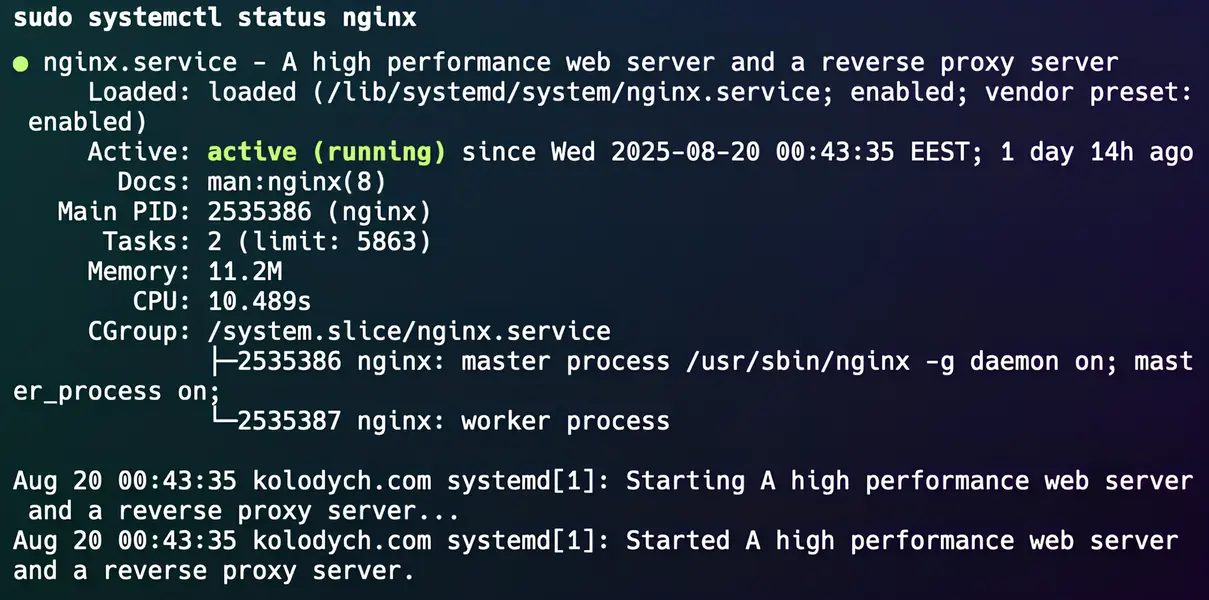
Understanding how to use nginx includes mastering these essential commands:
sudo systemctl status nginx
sudo systemctl start nginx
sudo systemctl stop nginx
sudo systemctl restart nginx
sudo systemctl reload nginx
sudo systemctl enable nginx
Understanding Nginx Configuration Files
The nginx config file location is typically at /etc/nginx/nginx.conf. This is where you configure global nginx settings like worker processes, connections, logging, and SSL protocols.
Main Nginx Configuration File (nginx.conf)
Here's an optimized nginx config example with detailed explanations. This configuration follows nginx best practices for security and performance:
events {

    worker_connections 1024;  # Max simultaneous connections per worker process. You can adjust this based on traffic needs.

    }


    http {

    sendfile on;  # Enables efficient file transfers. Leave enabled for serving static files.

    tcp_nopush on;  # Optimizes TCP packets for sending large files. Leave as is unless specific requirements suggest otherwise.

    types_hash_max_size 2048;  # Limits the maximum size of the hash table for MIME types. Usually, the default value is sufficient.

    include /etc/nginx/mime.types;  # Includes the MIME types configuration file that maps file extensions to MIME types. Leave as is.

    default_type application/octet-stream;  # Default MIME type for files that don't have a specific MIME type. Leave as is unless you need to specify something else.


    # SSL Settings

    ssl_protocols TLSv1.2 TLSv1.3;  # Enforces modern TLS protocols. Keep this for security purposes.

    ssl_prefer_server_ciphers on;  # Ensures the server's ciphers are preferred for secure connections. Leave as is.

    ssl_session_cache shared:SSL:10m;  # Enables caching of SSL sessions to improve performance on subsequent connections.

    ssl_session_timeout 10m;  # Sets the session cache timeout to 10 minutes. This is fine for most use cases.

    ssl_ciphers 'HIGH:!aNULL:!MD5';  # Specifies strong ciphers for SSL/TLS. Leave as is unless you need a specific set.


    # Security Headers

    add_header X-Content-Type-Options nosniff;  # Prevents browsers from interpreting files as a different MIME type. Keep for security.

    add_header X-Frame-Options DENY;  # Prevents the site from being displayed in iframes. Keep for security unless needed otherwise.

    add_header X-XSS-Protection "1; mode=block";  # Protects against cross-site scripting (XSS) attacks. Keep for security.

    server_tokens off;  # Hides Nginx version information. Keep as is to avoid revealing server details.


    # Logging Settings

    access_log /var/log/nginx/access.log;  # Defines where to log access requests. Keep unless you want to change the log location.

    error_log /var/log/nginx/error.log;  # Defines where to log error messages. Keep unless you need to change the log location.


    # Gzip Settings

    gzip on;  # Enables Gzip compression for better performance. Keep enabled for most sites to reduce data size.

    gzip_vary on;  # Informs proxies that the response varies based on the request's Accept-Encoding header.

    gzip_proxied any;  # Enables Gzip for all proxied requests. Keep as is unless a specific case requires modification.

    gzip_comp_level 6;  # Defines the compression level. Level 6 is a good balance between speed and compression.

    gzip_types text/plain text/css application/json application/javascript text/xml application/xml application/xml+rss text/javascript;  # Specifies file types to compress. These are common types that benefit from compression. Adjust as needed based on your site’s content.


    # Include virtual host configurations

    include /etc/nginx/sites-enabled/*;  # Includes all the configurations from the sites-enabled directory. Keep enabled unless you have a specific reason to disable it.

    }
Tip: Simply copy and paste this into /etc/nginx/nginx.conf for an optimized baseline configuration. (no modifications required)
Step 3: Configuring your Domain.com file
Proper domain configuration is crucial for nginx performance. This section shows you how to set up virtual hosts (server blocks) following nginx configuration best practices.
Creating a New Domain Configuration
To create new domain.com file for your domain in the /etc/nginx/sites-available/ directory without
opening it directly, you can use the following command (change domain.com -->
to your domain name):
For example: KOLODYCH.com - is my domain name.
sudo touch /etc/nginx/sites-available/domain.com
This command will create an empty file named domain.com in the sites-available directory. Once the file is created, you can then edit it as needed + create a symlink to sites-enabled using the following command:
sudo ln -s /etc/nginx/sites-available/domain.com /etc/nginx/sites-enabled/
Open your just created domain.com file inside /etc/nginx/sites-available/ folder and set it like this:
# Redirect from IPv4 address to the domain

server {

    listen 80;

    server_name 0.0.0.0;  # Your IPv4 address

    return 301 https://domain.com$request_uri;  # Redirect to your domain.com

}


# Redirect from IPv6 address to the domain

server {

    listen [1:1:1:1:1:1:1:1]:80;  # Your IPv6 address

    return 301 https://domain.com$request_uri;  # Redirect to your domain.com

}


# Redirect from www to non-www for HTTP traffic

server {

    listen 80;

    server_name www.domain.com;  # www domain

    return 301 https://domain.com$request_uri;  # Redirect www to non-www

}


# Main server block for your domain

server {

    listen 80;

    server_name domain.com;  # Your domain name

    return 301 https://domain.com$request_uri;  # Force HTTPS

}


# Server block for handling HTTPS

server {

    listen 443 ssl http2;  # HTTPS + Enable HTTP/2 improves performance by multiplexing multiple requests over a single connection, reducing latency, and offering other benefits.

    server_name domain.com;  # Non-www domain


    ssl_certificate /etc/ssl/certificate.crt;  # Your certificate

    ssl_certificate_key /etc/ssl/private.key;   # Your private key

    ssl_trusted_certificate /etc/ssl/ca_bundle.crt;  # Your CA bundle


    root /var/www/domain.com;  # Your document root

    index index.php index.html;  # Ensure index.php is included


    # Error handling

    error_page 404 /404.html;  # Custom 404 error page

    location = /404.html {

        root /var/www/domain.com;  # Location of the 404 error page

        internal;  # Marks it as internal, so users can't access it directly

    }


    location ~ \.php$ {

        include snippets/fastcgi-php.conf;  # Includes PHP configuration snippets

        fastcgi_pass unix:/var/run/php/php-fpm.sock;  # Pass PHP requests to PHP-FPM

        fastcgi_param SCRIPT_FILENAME $document_root$fastcgi_script_name;  # Required for PHP to work correctly

        include fastcgi_params;  # Includes standard fastcgi parameters

    }


    # Cache CSS, JS, images, fonts, and HTML files for 30 days

    location ~* \.(css|js|jpg|jpeg|png|gif|ico|svg|webp|woff|woff2|ttf|eot|html)$ {

        expires 30d;

        add_header Cache-Control "public";

    }


    # Optional: Adjust client upload size if necessary

    client_max_body_size 10M;  # Set maximum upload size to 10MB

}


# Server block for handling HTTPS for www

server {

    listen 443 ssl;  # HTTPS

    server_name www.domain.com;  # www domain


    ssl_certificate /etc/ssl/certificate.crt;  # Your certificate

    ssl_certificate_key /etc/ssl/private.key;   # Your private key

    ssl_trusted_certificate /etc/ssl/ca_bundle.crt;  # Your CA bundle


    return 301 https://domain.com$request_uri;  # Redirect www to non-www

}
IMPORTANT! Replace domain.com to your domain name (Example: kolodych.com, abc.org, petsof.net)
Replace 0.0.0.0 with your actual IPv4 address. You can find it using the ifconfig or ip a command, or check your server details.
Replace or Delete 1:1:1:1:1:1:1:1 with your actual IPv6 address (if applicable).
SSL Certificate Setup
Obtain SSL certificates from a provider (e.g., ZeroSSL or Let's Encrypt). Upload them inside /etc/ssl/ folder. Ensure the following paths are correct:
- /etc/ssl/certificate.crt (SSL certificate)
- /etc/ssl/private.key (Private key)
- /etc/ssl/ca_bundle.crt (CA Bundle)
By following these steps above, you can install Nginx and set up SSL, optimizing your server for performance and security.
Upload your index.html and other site resources to /var/www/your-domain.com folder
Test and Reload nginx
Test the Nginx configuration for syntax errors:
sudo nginx -t
If there are no errors, reload Nginx to apply the changes:
sudo systemctl reload nginx
Step 4: configuring .htaccess file settings:
For enhanced security and performance, configure your .htaccess settings:
ErrorDocument 404 /404.html # Custom error page for 404 errors


AddDefaultCharset UTF-8 # Sets the default character encoding for your website to UTF-8


RewriteEngine On # This activates the mod_rewrite engine, enabling the use of URL rewrites


# Redirect IPv4 address to domain

RewriteCond %{HTTP_HOST} ^0.0.0.0$ [OR] # This checks if the request is coming to your IPv4 address

# Redirect IPv6 address to domain

RewriteCond %{HTTP_HOST} ^\[1:1:1:1:1:1:1:1]$ # This checks if the request is coming to your IPv6 address

RewriteRule ^(.*)$ https://domain.com$1 [L,R=301] # Redirects any requests from the IP addresses to your domain


# Optional: Redirect from www to non-www

RewriteCond %{HTTP_HOST} ^www\.(.*)$ [NC] # This checks if the URL starts with "www." (case-insensitive)

RewriteRule ^(.*)$ https://domain.com$1 [L,R=301] # Redirects any "www" requests to the non-www version of your domain, maintaining the rest of the URL


# Force HTTPS

RewriteCond %{HTTPS} off # This checks if the connection is not using HTTPS

RewriteRule ^(.*)$ https://domain.com$1 [L,R=301] # Redirects HTTP requests to HTTPS for a secure connection


# Allow sitemap and robots.txt to be directly accessible

RewriteCond %{REQUEST_URI} !^/sitemap\.xml$ [NC] # Allows the sitemap.xml file to be accessible without redirection

RewriteCond %{REQUEST_URI} !^/robots\.txt$ [NC] # Allows the robots.txt file to be accessible without redirection


# Gzip Compression

<IfModule mod_deflate.c>
    AddOutputFilterByType DEFLATE text/html text/plain text/xml text/css # Compresses HTML, plain text, XML, and CSS files for faster loading

    AddOutputFilterByType DEFLATE application/javascript application/x-javascript application/xml # Compresses JavaScript and XML files

    AddOutputFilterByType DEFLATE image/svg+xml # Compresses SVG images

    AddOutputFilterByType DEFLATE application/rss+xml application/atom_xml # Compresses RSS and Atom feeds

    AddOutputFilterByType DEFLATE application/x-font-ttf application/x-font-opentype application/vnd.ms-fontobject # Compresses font files

    BrowserMatch ^Mozilla/4 gzip-only-text/html # Prevents older browsers from using gzip compression

    BrowserMatch ^Mozilla/4\.0[678] no-gzip # Prevents older browsers from using gzip compression

    BrowserMatch \bMSIE !no-gzip !gzip-only-text/html # Prevents older versions of Internet Explorer from being excluded from gzip compression

    Header append Vary User-Agent # Makes sure that compressed files are sent according to the user agent

</IfModule>

# Cache Control

<IfModule mod_expires.c>
    ExpiresActive On # Enables caching for static files


    # Default cache time

    ExpiresDefault "access plus 1 day" # Default cache time is 1 day for all files


    ExpiresByType text/css "access plus 1 day" # Cache CSS files for 1 day


    # Cache images (JPEG, PNG, GIF, WebP, SVG) for 1 year

    ExpiresByType image/jpeg "access plus 1 year" # Cache JPEG images for 1 year

    ExpiresByType image/png "access plus 1 year" # Cache PNG images for 1 year

    ExpiresByType image/gif "access plus 1 year" # Cache GIF images for 1 year

    ExpiresByType image/webp "access plus 1 year" # Cache WebP images for 1 year

    ExpiresByType image/svg "access plus 1 year" # Cache SVG images for 1 year


    # Cache video files (MP4, WebM, OGG, Quicktime) for 1 year

    ExpiresByType video/mp4 "access plus 1 year" # Cache MP4 video files for 1 year

    ExpiresByType video/webm "access plus 1 year" # Cache WebM video files for 1 year

    ExpiresByType video/ogg "access plus 1 year" # Cache OGG video files for 1 year

    ExpiresByType video/quicktime "access plus 1 year" # Cache Quicktime video files for 1 year


    # Cache JavaScript files for 1 year

    ExpiresByType application/javascript "access plus 1 year" # Cache JavaScript files for 1 year

    ExpiresByType application/x-javascript "access plus 1 year" # Cache X-JavaScript files for 1 year


    ExpiresByType application/pdf "access plus 1 year" # Cache PDF files for 1 year


    # Cache fonts for 1 year

    ExpiresByType font/ttf "access plus 1 year" # Cache TTF font files for 1 year

    ExpiresByType font/otf "access plus 1 year" # Cache OTF font files for 1 year

    ExpiresByType font/woff "access plus 1 year" # Cache WOFF font files for 1 year

    ExpiresByType font/woff2 "access plus 1 year" # Cache WOFF2 font files for 1 year

</IfModule>


# Cache Control Headers (for browsers and CDNs)

<IfModule mod_headers.c>

    # Cache CSS files for 1 day


        Header set Cache-Control "max-age=86400, public" # Sets cache for CSS files to 1 day


    # Cache images for 1 year


        Header set Cache-Control "max-age=31536789, public" # Sets cache for image files to 1 year


    # Cache video files for 1 year


        Header set Cache-Control "max-age=31536789, public" # Sets cache for video files to 1 year


    # Cache JavaScript files for 1 year


        Header set Cache-Control "max-age=31536789, public" # Sets cache for JavaScript files to 1 year


    # Cache PDFs for 1 year


        Header set Cache-Control "max-age=31536789, public" # Sets cache for PDF files to 1 year


    # Cache fonts for 1 year


        Header set Cache-Control "max-age=31536789, public" # Sets cache for font files to 1 year


</IfModule>


# The Strict-Transport-Security (HSTS) header is a critical security feature for websites served over HTTPS.

<IfModule mod_headers.c>
    Header always set Strict-Transport-Security "max-age=31536000; includeSubDomains" # Ensures HTTPS is enforced for all subdomains for 1 year

</IfModule>


# Enable text compression

<IfModule mod_deflate.c>
    AddOutputFilterByType DEFLATE text/html text/plain text/xml text/css # Compresses HTML, plain text, XML, and CSS files

    AddOutputFilterByType DEFLATE application/javascript application/x-javascript application/xml # Compresses JavaScript and XML files

</IfModule>


# Minify CSS

<IfModule mod_filter.c>
    FilterDeclare "DEFLATE" # Declares the filter for minifying content

    FilterProvider DEFLATE png|gif|jpg|jpeg|webp|css|js|xml|html # Applies the minify filter to specific file types

    FilterChain DEFLATE # Minifies content by default

</IfModule>
IMPORTANT! Replace domain.com with your actual domain name (Example: kolodych.com, abc.org, petsof.net).
Replace 0.0.0.0 with your actual IPv4 address. You can find it using the ifconfig or ip a command, or check your server details.
Replace or delete [1:1:1:1:1:1:1:1] with your actual IPv6 address (if applicable). If you don’t use IPv6, you can safely remove this line.
Ensure your DNS settings point to the correct IP address for your domain. You can configure DNS settings via your hosting provider's dashboard.
Step 5: Robots TXT File Example
Ensure your site is SEO-friendly by configuring your robots.txt file:
User-agent: *

Disallow: /private/

Allow: /public/

Sitemap: https://domain.com/sitemap.xml
IMPORTANT! Replace domain.com with your actual domain name (Example: kolodych.com, abc.org, petsof.net).
Step 6: XML Sitemap Example
Before requesting indexing for your site, ensure your sitemap file is the last item you create, confirming all settings and pages are complete. Here's an example of how to format your sitemap for optimal search engine indexing:
<?xml version="1.0" encoding="UTF-8"?> <!-- XML declaration -->

<urlset xmlns="http://www.sitemaps.org/schemas/sitemap/0.9" xmlns:xsi="http://www.w3.org/2001/XMLSchema-instance" xmlns:image="http://www.google.com/schemas/sitemap-image/1.1" xmlns:video="http://www.google.com/schemas/sitemap-video/1.1" xsi:schemaLocation="http://www.sitemaps.org/schemas/sitemap/0.9 http://www.sitemaps.org/schemas/sitemap/0.9/sitemap.xsd"> <!-- URL Set Declaration -->

<!-- Created with Free Online Sitemap Generator www.xml-sitemaps.com --> <!-- Sitemap Generator Comment -->


<url> <!-- Start URL entry -->

<loc>https://domain.com/</loc> <!-- Homepage URL -->

<lastmod>2024-08-13T12:36:05+00:00</lastmod> <!-- Last Modified Date -->

<priority>1.00</priority> <!-- Priority = 1.00 for the main page ONLY -->

</url> <!-- End URL entry -->


<url> <!-- Start another URL entry -->

<loc>https://domain.com/page1.html</loc> <!-- Page 1 URL -->

<lastmod>2024-10-24T04:19:18+00:00</lastmod> <!-- Last Modified Date -->

<priority>0.80</priority> <!-- Priority = 0.8-0.9 for Important pages like Services, Categories -->

<changefreq>monthly</changefreq> <!-- Change Frequency from never, yearly, monthly, weekly... -->

<image:image> <!-- Start Image -->

<image:loc>https://domain.com/images/image1.webp</image:loc> <!-- Image Location -->

<image:caption>image_caption_text_here</image:caption> <!-- Image Caption -->

<image:title>Image_title_goes_here</image:title> <!-- Image Title -->

</image:image> <!-- End Image -->

</url> <!-- End URL entry -->


<url> <!-- Start another URL entry -->

<loc>https://domain.com/page2.html</loc> <!-- Page 2 URL -->

<lastmod>2024-08-04</lastmod> <!-- Last Modified Date -->

<priority>0.6-0.7</priority> <!-- Priority = 0.6-0.7 for frequently updated pages like blog articles -->

<changefreq>monthly</changefreq> <!-- Change Frequency ... till daily, hourly, always for live news -->

</url> <!-- End URL entry -->


<!-- Add more URLs here for other pages --> <!-- Comment for adding more URLs -->

</urlset> <!-- End URL Set -->
IMPORTANT! Replace domain.com to your domain name (Example: kolodych.com, abc.org, petsof.net) as well as check all locations https://, page1, page2, image1, image_caption_text_here and other ...
Frequently Asked Questions About Nginx Configuration
How do I optimize nginx for high traffic?
To optimize nginx for high traffic, increase worker_connections (2048+), enable HTTP/2, implement FastCGI caching, use gzip compression, optimize buffer sizes, and configure proper timeout settings. Monitor your server resources and adjust nginx settings based on actual traffic patterns.
What are the nginx minimum requirements?
Nginx minimum requirements are modest: 512MB RAM, 1 CPU core, and 10GB storage. However, for production environments, we recommend at least 1GB RAM, 2 CPU cores, and SSD storage for optimal nginx performance.
Where is the nginx config file located?
The main nginx config file location is /etc/nginx/nginx.conf. Virtual host configurations are typically stored in /etc/nginx/sites-available/ and enabled via symlinks in /etc/nginx/sites-enabled/.
How do I enable HTTP/2 in nginx?
To enable nginx HTTP/2, add http2 to your listen directive: listen 443 ssl http2;. HTTP/2 requires SSL/TLS, so ensure you have valid certificates configured. This significantly improves nginx performance for modern browsers.
What are nginx best practices for security?
Nginx security best practices include: hiding version numbers (server_tokens off), implementing rate limiting, using modern TLS protocols only (TLSv1.2+), adding security headers (X-Frame-Options, CSP), enabling HSTS, regular updates, and proper log monitoring. Follow this nginx hardening guide for comprehensive security.
How do I check my nginx configuration for errors?
Use sudo nginx -t to test your nginx configuration for syntax errors before applying changes. This command validates your config files and reports any issues. Always test before reloading with sudo systemctl reload nginx.
How can I improve nginx performance?
Improve nginx performance through: worker process optimization, enabling compression, implementing caching (FastCGI, browser), optimizing buffer sizes, using HTTP/2, setting proper timeouts, serving static content efficiently, and implementing a CDN. Regular nginx performance tuning based on traffic analysis is essential.
What's the difference between nginx and Apache?
Nginx uses an event-driven architecture with lower resource usage and better nginx performance for static content and high concurrency. Apache uses a process-driven model, better for dynamic content and .htaccess support. Nginx requires direct nginx configuration file edits, while Apache allows per-directory .htaccess files.
Conclusion: Mastering Nginx Configuration for Peak Performance
This comprehensive nginx guide has covered everything from basic installation to advanced nginx optimization techniques. By following these nginx best practices and implementing proper nginx configuration, you can build a high-performance, secure web server capable of handling significant traffic.
Key Takeaways
- Nginx Performance: Proper configuration of worker processes, buffers, and caching dramatically improves performance.
- Security First: Implement nginx security best practices including modern TLS, security headers, and rate limiting.
- Regular Maintenance: Test configurations, monitor logs, and keep nginx updated for optimal operation.
- Optimization: Use HTTP/2, gzip compression, and proper caching to optimize nginx for better user experience.
- Configuration Management: Keep your nginx config organized, documented, and version-controlled.
Whether you're running a small business site or preparing to optimize nginx for high traffic applications, this guide provides the foundation for successful nginx deployment. Remember to continually monitor performance, adjust nginx settings based on real-world usage, and stay updated with the latest nginx documentation and security advisories.
My Go-To Web Arsenal

Bubacat card game website

Football Academy site example

Japalandia work abroad Landing Page

Model Agency site example

Vent Build construction company site